
Front Page › Forums › AUDIO & TECHZONE › Tutorials › [TUTORIAL] Dealing with multitrack files (p1: MOGG format)
-
AuthorPosts
-
July 12, 2008 at 1:46 pm #546539
totomParticipantHere’s a tutorial to help you use in an optimal way the sources which are in MOGG format (as in Multitrack OGG), they’re eventually coming from the game called RockBand (you can find some of them ). This file format opens with , a free audio software which use is still a bit obscure to me but easily manageable and practical for what we’re going to do with it.
Let’s open a MOGG file into Audacity:


Click OK, this is perfectly normal.
Here’s what it should look like, you can have from 8 to 14 tracks depending on the song, often with the following types of tracks: Bass Drum, Snare Drum, Cymbals or Drums Room Wide, Bass, Guitars, Vocals, and the rest: Synth, Backing Vocals, Fills.
Audacity opened this file as if it was 14 different mono tracks, you can export it as is but we’re going to transform some of the tracks into stereo tracks for obviously practical reasons. Click on the red circled button in the following picture…
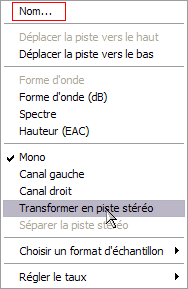
A menu appears where you can select the function "Transform into a stereo track".

You can also rename the track by clicking on "Name…"

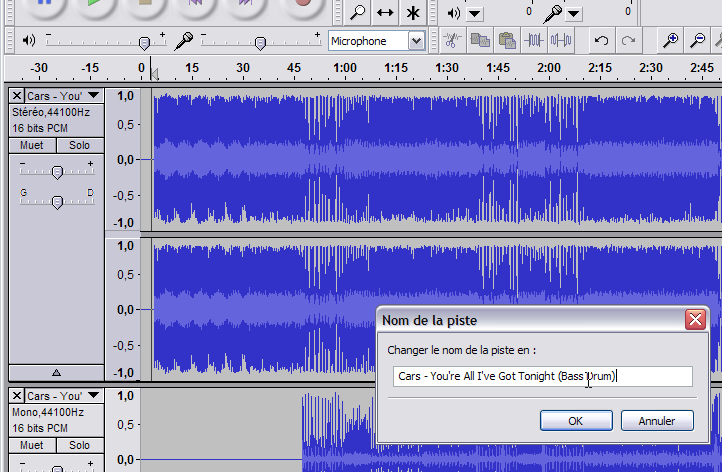
Here’s how our stereo track looks and the box where you need to enter a new track name.

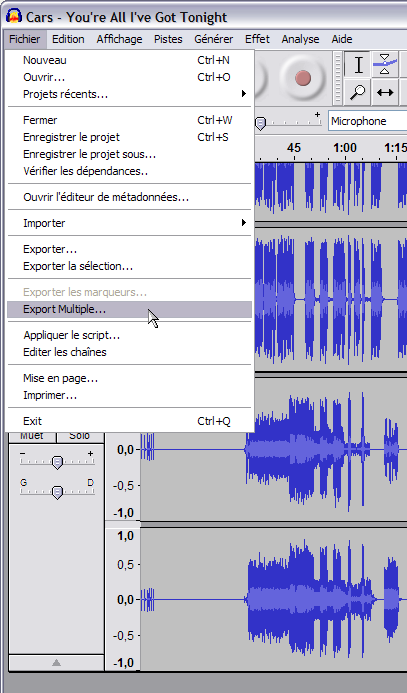
Beware not to put into stereo some of the mono tracks which will stay mono (most of the time, bass but it can also be the bass drum or even vocals). When everything’s done for every track, click into the File menu > Multiple Export.

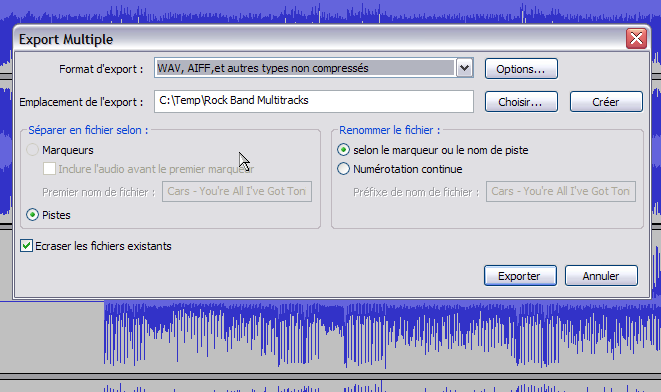
Pick Wave format and an appropriate output directory:

Click OK.

Export should take about less than a minute.

Don’t save unless you didn’t export every track and you want to get back to all your changes later, as it will produce a very small-sized project file, like an Audition multitrack session file.

Then, convert the whole bunch of output wave into (I know I can be annoying with FLAC
 )
)
Because it’s better, here’s the proof:

Most of the time, FLAC files take half less size than Wave, so even if you don’t use Ableton Live, for file storage, it’s very interesting.
AdSense 336x280July 12, 2008 at 1:46 pm #653339
totomParticipantHere’s a tutorial to help you use in an optimal way the sources which are in MOGG format (as in Multitrack OGG), they’re eventually coming from the game called RockBand (you can find some of them ). This file format opens with , a free audio software which use is still a bit obscure to me but easily manageable and practical for what we’re going to do with it.
Let’s open a MOGG file into Audacity:
Click OK, this is perfectly normal.
Here’s what it should look like, you can have from 8 to 14 tracks depending on the song, often with the following types of tracks: Bass Drum, Snare Drum, Cymbals or Drums Room Wide, Bass, Guitars, Vocals, and the rest: Synth, Backing Vocals, Fills.
Audacity opened this file as if it was 14 different mono tracks, you can export it as is but we’re going to transform some of the tracks into stereo tracks for obviously practical reasons. Click on the red circled button in the following picture…A menu appears where you can select the function "Transform into a stereo track".
You can also rename the track by clicking on "Name…"
Here’s how our stereo track looks and the box where you need to enter a new track name.
Beware not to put into stereo some of the mono tracks which will stay mono (most of the time, bass but it can also be the bass drum or even vocals). When everything’s done for every track, click into the File menu > Multiple Export.
Pick Wave format and an appropriate output directory:
Click OK.
Export should take about less than a minute.
Don’t save unless you didn’t export every track and you want to get back to all your changes later, as it will produce a very small-sized project file, like an Audition multitrack session file.
Then, convert the whole bunch of output wave into (I know I can be annoying with FLAC
)Because it’s better, here’s the proof:
Most of the time, FLAC files take half less size than Wave, so even if you don’t use Ableton Live, for file storage, it’s very interesting.
AdSense 336x280December 12, 2010 at 8:35 am #684202
themachineragesParticipantthanks for the tutorial broo!!!
AdSense 336x280January 6, 2014 at 5:07 pm #701558
mic_cimParticipanthey thanks alot
AdSense 336x280November 15, 2014 at 1:22 pm #703637
acapellaKeymasterAll images restored – thank you so much Totom, looking forward to some more of your tutorials soon
AdSense 336x280December 21, 2016 at 8:14 am #705615
totomParticipantSeems like I forgot to update this one:
——-
Here’s a tutorial to help you use in an optimal way the sources which are in MOGG format (as in Multitrack OGG), they’re eventually coming from the game called RockBand (you can find some of them ). This file format opens with , a free audio software which use is still a bit obscure to me but easily manageable and practical for what we’re going to do with it.
Let’s open a MOGG file into Audacity:
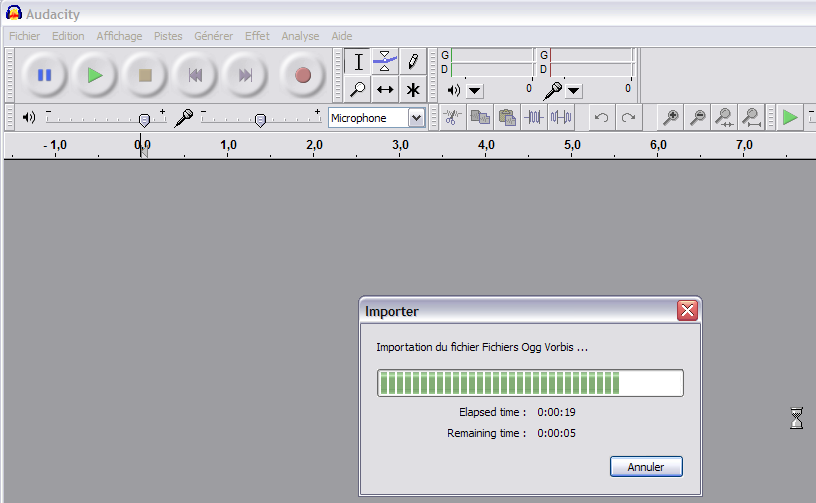
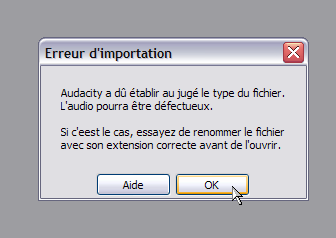
Click OK, this is perfectly normal.
Here’s what it should look like, you can have from 8 to 14 tracks depending on the song, often with the following types of tracks: Bass Drum, Snare Drum, Cymbals or Drums Room Wide, Bass, Guitars, Vocals, and the rest: Synth, Backing Vocals, Fills.
Audacity opened this file as if it was 14 different mono tracks, you can export it as is but we’re going to transform some of the tracks into stereo tracks for obviously practical reasons. Click on the red circled button in the following picture…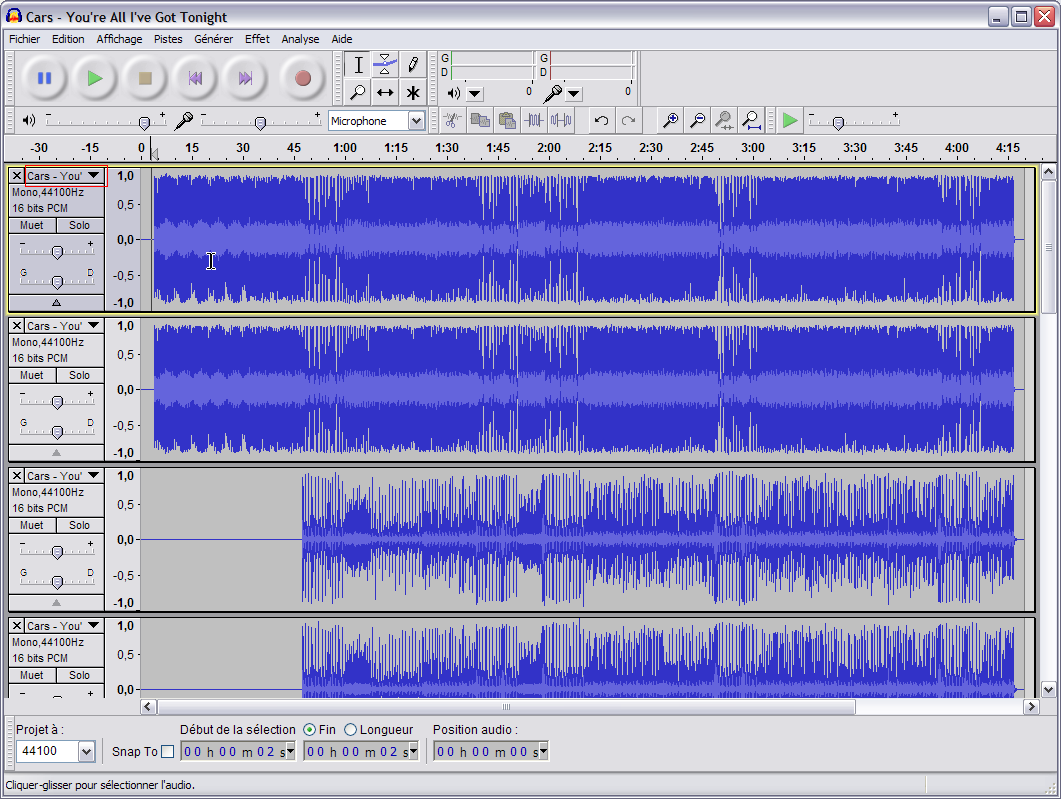
A menu appears where you can select the function "Transform into a stereo track".
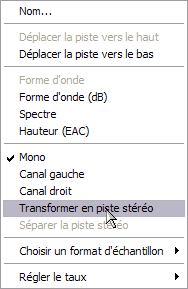
You can also rename the track by clicking on "Name…"
Here’s how our stereo track looks and the box where you need to enter a new track name.
Beware not to put into stereo some of the mono tracks which will stay mono (most of the time, bass but it can also be the bass drum or even vocals). When everything’s done for every track, click into the File menu > Multiple Export.
Pick Wave format and an appropriate output directory:
Click OK.
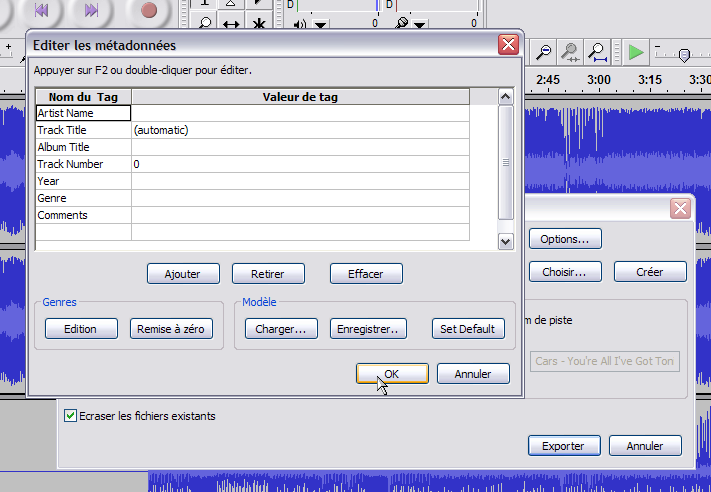
Export should take about less than a minute.
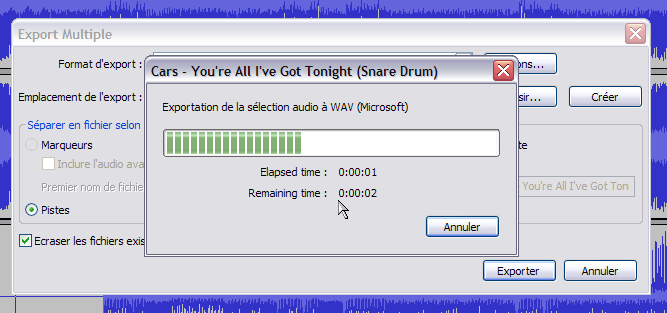
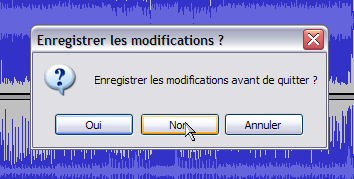
Don’t save unless you didn’t export every track and you want to get back to all your changes later, as it will produce a very small-sized project file, like an Audition multitrack session file.
Then, convert the whole bunch of output wave into (I know I can be annoying with FLAC
)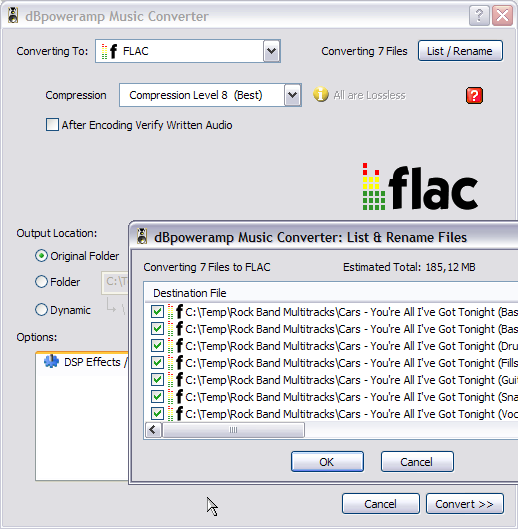
Because it’s better, here’s the proof:
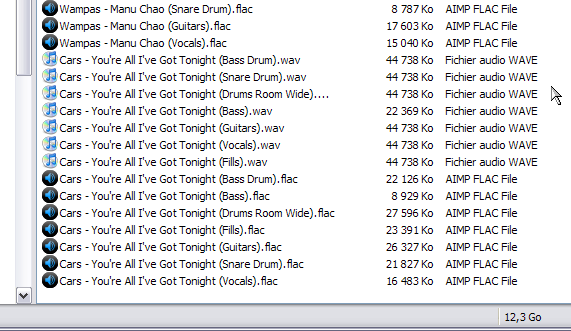
Most of the time, FLAC files take half less size than Wave, so even if you don’t use Ableton Live, for file storage, it’s very interesting.
AdSense 336x280 -
AuthorPosts
The forum ‘Tutorials’ is closed to new topics and replies.